

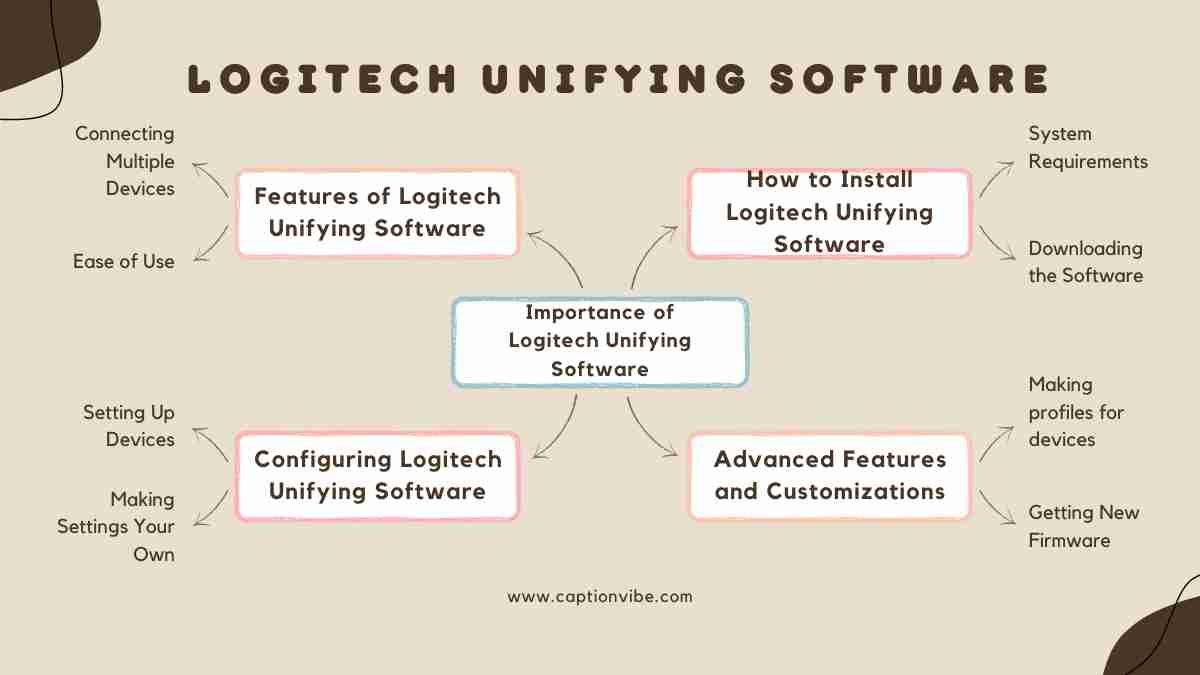
Introduction to Logitech Unifying Software
If you use wireless devices such as a mouse or keyboard, you may have heard about Logitech Unifying Software. Many computer users rely on this tool to manage multiple wireless devices easily and efficiently. The software is designed to connect several compatible Logitech devices to a single receiver, reducing clutter and improving productivity.
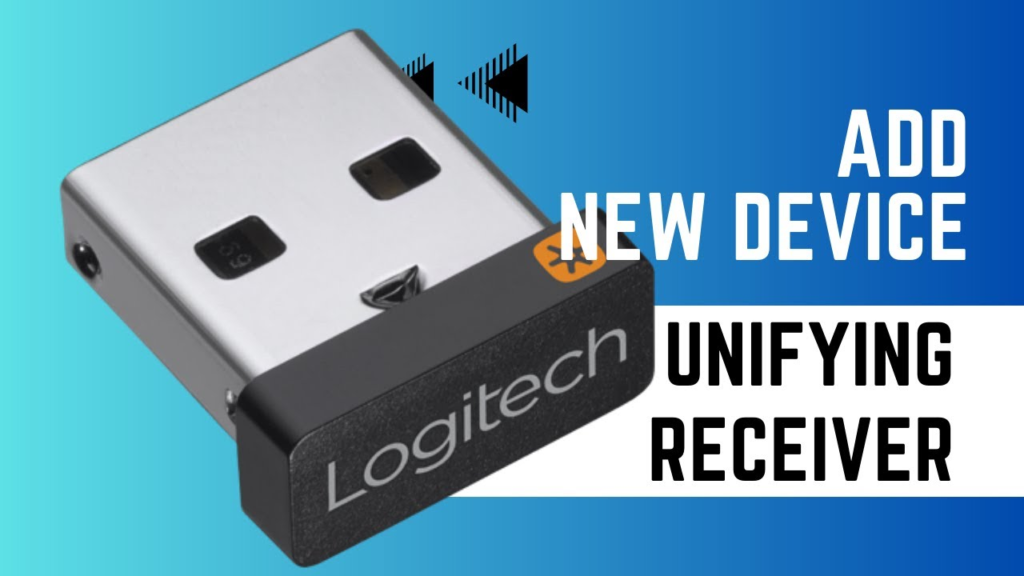
Logitech Unifying Software is developed by Logitech, a well-known company that manufactures computer peripherals like keyboards, mice, webcams, and speakers. The software allows users to pair up to six compatible wireless devices with one tiny USB receiver known as the Unifying Receiver.
This guide will explain everything you need to know about Logitech Unifying Software, including how it works, its main features, how to install it, compatible devices, and troubleshooting tips. Whether you are a beginner or an experienced user, this article will help you understand how to get the most out of this powerful tool.
What Is Logitech Unifying Software?
Logitech Unifying Software is a utility program that helps users connect and manage multiple Logitech wireless devices using a single USB receiver. Normally, wireless devices require their own USB receivers, which can take up valuable USB ports on your computer.
However, with Logitech’s Unifying technology, one receiver can connect multiple devices such as:
- Wireless mouse
- Wireless keyboard
- Wireless trackball
- Wireless number pad
The Unifying receiver is extremely small and usually stays plugged into the USB port of your computer or laptop. Once connected, the Logitech Unifying Software allows you to pair compatible devices quickly.
The software is available for major operating systems including Microsoft Windows and macOS, making it accessible to most computer users.
How Logitech Unifying Software Works
Understanding how Logitech Unifying Software works can help users take advantage of its full capabilities.
The process begins with a small USB receiver that comes with Logitech wireless devices. This receiver communicates with compatible devices using a secure wireless connection.
Basic Working Process
- Plug the Unifying receiver into your computer’s USB port.
- Install Logitech Unifying Software on your system.
- Launch the software and start the pairing process.
- Turn on your Logitech wireless device.
- The software detects and connects the device automatically.
Once paired, the device will connect automatically whenever it is turned on.
This simple process makes it easy for users to manage multiple devices without needing several receivers.
Key Features of Logitech Unifying Software
One of the reasons why Logitech Unifying Software is popular among users is its useful features. These features make it easy to manage wireless devices efficiently.
Connect Multiple Devices with Logitech Unifying Software
One of the main advantages of Logitech Unifying Software is the ability to connect multiple devices to a single receiver.
You can connect up to six compatible Logitech devices at the same time. This is particularly helpful for users who use both a wireless keyboard and mouse.
Instead of occupying multiple USB ports, the Unifying receiver allows everything to work through a single connection.
Easy Device Pairing with Logitech Unifying Software
Another important feature of Logitech Unifying Software is its simple pairing process. The software includes a step-by-step wizard that guides users through connecting devices.
This makes the setup process beginner-friendly and eliminates the need for technical knowledge.
Secure Wireless Connection
Security is important when using wireless devices. Logitech uses advanced encryption technology to ensure that communication between devices and the receiver is secure.
This prevents interference or unauthorized connections.
Compact Receiver Design
The Unifying receiver is extremely small. It is often called a nano receiver because it barely sticks out of the USB port.
This makes it ideal for laptops because users can leave the receiver plugged in even when transporting the laptop.
How to Download Logitech Unifying Software
Downloading Logitech Unifying Software is simple and takes only a few minutes.
Follow these steps to get started.
Step 1: Visit the Official Website
Go to the official website of Logitech and search for the Unifying Software download page.
Step 2: Choose Your Operating System
Select the correct version for your system, such as:
- Microsoft Windows
- macOS
Step 3: Download the Software
Click the download button and save the installation file to your computer.
Step 4: Install the Software
Open the downloaded file and follow the installation instructions.
After installation, launch the software and start pairing your devices.
How to Set Up Logitech Unifying Software
Setting up Logitech Unifying Software is straightforward. Here is a step-by-step guide.
Step 1: Insert the Unifying Receiver
Plug the receiver into a USB port on your computer.
Step 2: Launch the Software
Open the installed Unifying Software on your computer.
Step 3: Add a New Device
Click the option to add a new device.
Step 4: Turn On Your Device
Turn on your Logitech wireless mouse or keyboard.
Step 5: Complete the Pairing Process
The software will detect the device and complete the pairing process automatically.
Once the device is connected, it will work immediately.
Compatible Devices for Logitech Unifying Software
Not all Logitech devices support Unifying technology, so it is important to check compatibility before attempting to connect.
Many popular Logitech products support the system, including:
- Wireless keyboards
- Wireless mice
- Trackballs
- Presentation remotes
Some well-known compatible devices include:
- Logitech MX Master 3 Mouse
- Logitech K780 Multi‑Device Keyboard
- Logitech M720 Triathlon Mouse
You can identify compatible devices by the orange Unifying logo on the product or packaging.
Benefits of Using Logitech Unifying Software
Using Logitech Unifying Software provides several benefits for computer users.
Reduced USB Port Usage
One receiver can connect multiple devices, freeing up USB ports for other accessories.
Simplified Workspace
With fewer receivers, your desk setup becomes cleaner and more organized.
Easy Device Management
The software allows users to add or remove devices quickly.
Improved Productivity
Switching between multiple Logitech devices becomes easier, helping users work more efficiently.
Troubleshooting Logitech Unifying Software Issues
Sometimes users may encounter issues while using Logitech Unifying Software. Fortunately, most problems can be solved quickly.
Logitech Unifying Software Not Detecting Device
If the software cannot detect your device:
- Make sure the device is turned on
- Check battery levels
- Move the device closer to the receiver
- Restart the pairing process
Receiver Not Working
If the receiver is not working:
- Try a different USB port
- Restart your computer
- Reinstall Logitech Unifying Software
Device Disconnecting Frequently
Frequent disconnections may occur due to interference or weak batteries.
Solutions include:
- Replacing the batteries
- Moving the receiver closer
- Avoiding interference from other wireless devices
Logitech Unifying Software vs Logitech Options
Many users confuse Logitech Unifying Software with another Logitech application called Logitech Options.
Although both tools are related, they serve different purposes.
Logitech Unifying Software
- Connects multiple devices to a receiver
- Manages device pairing
- Focuses on connectivity
Logitech Options
- Customizes device buttons
- Adjusts mouse sensitivity
- Creates application-specific settings
Some users install both programs for full functionality.
Tips for Using Logitech Unifying Software Efficiently
To get the best results from Logitech Unifying Software, follow these tips.
Keep the Receiver Plugged In
Leaving the receiver plugged into your computer ensures that devices connect instantly.
Use Fresh Batteries
Fresh batteries improve wireless performance and prevent connection issues.
Update Software Regularly
Keeping the software updated ensures compatibility with new devices and improved stability.
Avoid Wireless Interference
Keep the receiver away from devices like routers or Bluetooth transmitters.
Future of Logitech Unifying Technology
Logitech continues to innovate in the field of wireless connectivity. Newer technologies such as Logi Bolt are designed to offer even stronger security and reliability.
However, Logitech Unifying Software remains widely used because millions of devices still rely on the Unifying receiver system.
For most everyday users, it continues to provide a simple and efficient way to manage multiple wireless peripherals.
Conclusion
Logitech Unifying_Software is an essential tool for anyone using compatible Logitech wireless devices. It allows users to connect multiple peripherals to a single receiver, saving USB ports and simplifying device management.
With its easy setup process, secure wireless connection, and compatibility with many Logitech products, the software has become a popular choice for both home and office users.
By understanding how Logitech Unifying_Software works and following the setup and troubleshooting tips discussed in this guide, users can enjoy a smoother and more productive computing experience.
Whether you use a wireless mouse, keyboard, or other Logitech device, the Unifying system provides a reliable and convenient solution for modern workspaces.
