

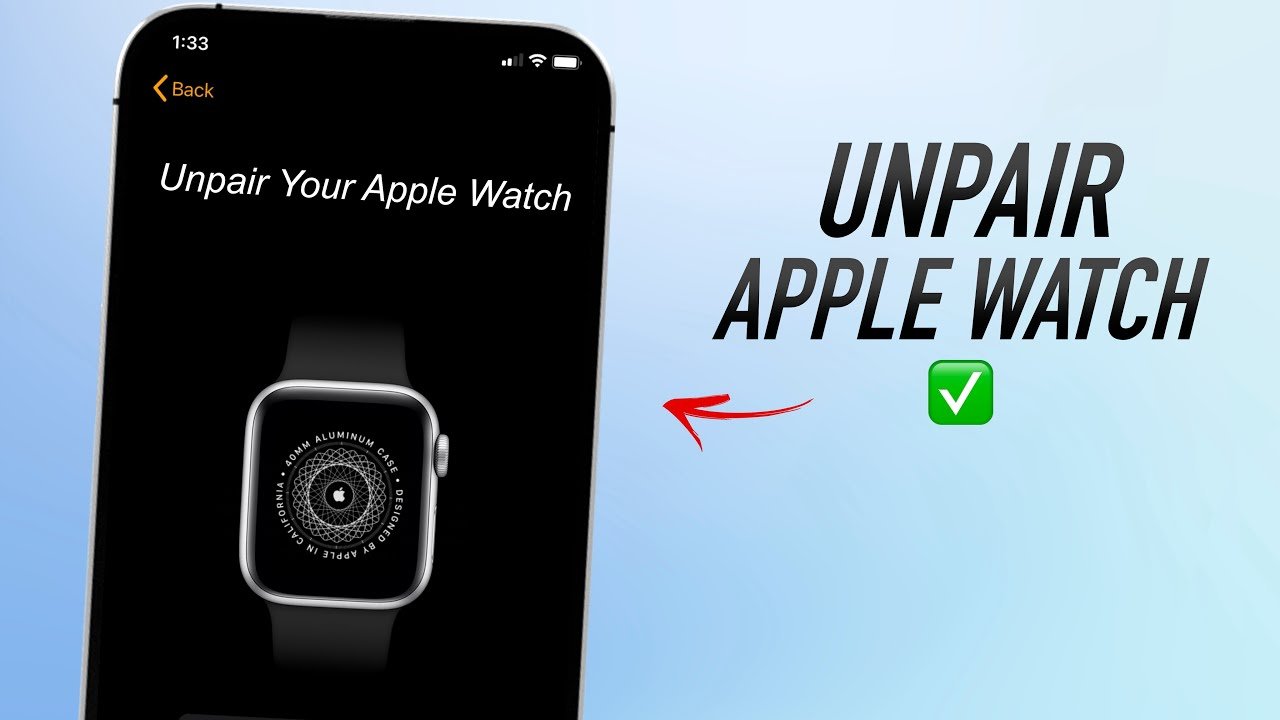
Introduction: How to Unpair Apple Watch the Right Way
If you own an Apple Watch, there may come a time when you need to disconnect it from your Apple iPhone. Whether you are upgrading to a new watch, selling your device, or troubleshooting connection issues, knowing how to unpair apple watch properly is very important.
Unpairing an Apple Watch does more than simply disconnect the device. When you unpair it, your iPhone automatically creates a backup of your watch data and removes the activation lock associated with your Apple Inc. account.
Many users worry that unpairing their watch might erase important data or cause technical issues. However, when done correctly, the process is simple and safe.
In this detailed guide, we will explain how to unpair apple watch step by step, the reasons you may need to do it, what happens during the process, and how to reconnect your watch later if needed.
Why You May Need to Learn How to Unpair Apple Watch
Before learning how to unpair apple watch, it helps to understand the common situations where this process is necessary.
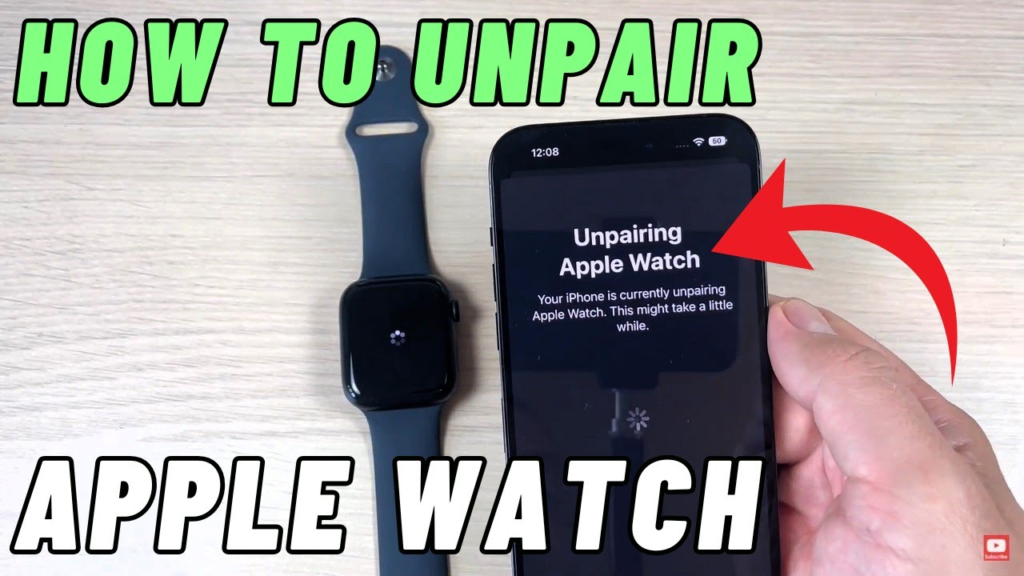
Many Apple Watch users unpair their devices for several reasons.
Common Reasons to Unpair Apple Watch
- Upgrading to a new Apple Watch model
- Selling or giving away your current watch
- Fixing connection issues between watch and iPhone
- Resetting the watch for troubleshooting
- Switching to a different iPhone
Unpairing ensures that your personal data is removed and the watch can safely connect to another device.
How to Unpair Apple Watch Using iPhone
The easiest and safest method for how to unpair apple watch is by using the Watch app on your iPhone.
Follow these simple steps.
Step 1: Open the Watch App
First, unlock your iPhone and open the Watch app. This app manages all settings and features of your Apple Watch.
Step 2: Go to the My Watch Section
Tap the My Watch tab located at the bottom of the screen.
Here you will see a list of watches currently connected to your iPhone.
Step 3: Select Your Apple Watch
Tap the name of the watch you want to disconnect.
Then tap the information icon (i) next to the watch name.
Step 4: Tap Unpair Apple Watch
Now select Unpair Apple Watch.
You may be asked to confirm your choice.
Step 5: Enter Apple ID Password
To remove activation lock, you will need to enter your Apple ID password.
Once confirmed, the unpairing process will begin.
Your iPhone will automatically back up your watch data before disconnecting.
What Happens When You Unpair Apple Watch
When you complete the process of how to unpair apple watch, several things happen automatically.
Understanding these steps helps ensure you don’t lose important data.
Backup Creation
Your iPhone creates a backup of your Apple Watch data. This allows you to restore settings when pairing the watch again.
Data Removal
All personal data, apps, and settings are removed from the watch.
Activation Lock Removal
Activation lock is removed so the watch can be used with another Apple ID.
Reset to Factory Settings
The watch returns to its original factory condition.
This process protects your privacy and prepares the watch for a new user.
How to Unpair Apple Watch Without iPhone
Sometimes your iPhone may not be available. In this situation, you may still need to learn how to unpair apple watch directly from the device.
Steps to Unpair Without iPhone
- Open Settings on the Apple Watch.
- Tap General.
- Scroll down and tap Reset.
- Select Erase All Content and Settings.
- Enter your passcode if prompted.
This method removes all data from the watch.
However, the activation lock will still remain linked to your Apple ID. You will need to remove the watch from your Apple account later.
How to Unpair Apple Watch Before Selling It
If you plan to sell or give away your watch, learning how to unpair apple watch properly is very important.
Before selling your device, follow these steps:
- Unpair the watch using the iPhone method
- Remove the watch from your Apple ID account
- Erase all data from the watch
- Clean the device physically
These steps ensure the new owner can set up the watch without problems.
How to Unpair Apple Watch to Fix Connection Problems
Sometimes users search for how to unpair apple watch because their device stops connecting to the iPhone.
Connection issues may include:
- Bluetooth problems
- Sync errors
- Software glitches
- App installation failures
In many cases, unpairing and pairing the watch again can solve these problems.
After unpairing, you can reconnect the watch and restore it from the backup created earlier.
How to Pair Apple Watch Again After Unpairing
Once you understand how to unpair apple watch, you might also want to reconnect it later.
Re-pairing is very easy.
Steps to Pair Apple Watch Again
- Turn on your Apple Watch.
- Bring the watch close to your iPhone.
- A pairing animation will appear on your phone.
- Follow the instructions on the screen.
- Restore from the backup created during unpairing.
Within a few minutes, your watch will be ready to use again.
Common Mistakes When Trying to Unpair Apple Watch
Many users make mistakes when trying to learn how to unpair apple watch, which can cause unnecessary complications.
Here are some common mistakes to avoid.
Forgetting Apple ID Password
You need your Apple ID password to remove activation lock.
Resetting Without Unpairing
Resetting directly from the watch without unpairing can leave activation lock enabled.
Not Backing Up Data
Unpairing through the iPhone automatically creates a backup, so always use this method when possible.
Avoiding these mistakes ensures a smooth experience.
Tips for Managing Apple Watch After Unpairing
After learning how to unpair apple watch, you may want to maintain your device properly.
Here are some useful tips:
- Always keep watchOS updated
- Use secure Apple ID credentials
- Back up your iPhone regularly
- Keep Bluetooth enabled for smooth pairing
Proper maintenance ensures your Apple Watch performs efficiently.
Troubleshooting Problems While Unpairing Apple Watch
Sometimes the unpairing process may not work correctly.
Here are some solutions.
Restart Both Devices
Restart your iPhone and Apple Watch before trying again.
Update Software
Make sure your iPhone and watchOS versions are up to date.
Check Bluetooth Connection
Ensure Bluetooth is enabled on your iPhone.
Reset Network Settings
Network issues can sometimes interfere with device pairing.
These troubleshooting steps usually resolve most issues.
Frequently Asked Questions About How to Unpair Apple Watch
Does unpairing Apple Watch delete data?
Yes. Unpairing removes all data from the watch, but a backup is created on your iPhone.
Can I unpair Apple Watch without my iPhone?
Yes. You can reset the watch from the settings menu, but activation lock will remain.
Will I lose my fitness data?
No. Health and fitness data are stored on your iPhone and iCloud.
How long does it take to unpair Apple Watch?
Usually the process takes only a few minutes.
Final Thoughts on How to Unpair Apple Watch
Learning how to unpair apple watch is an essential skill for Apple Watch users. Whether you are upgrading to a new device, fixing technical issues, or preparing your watch for sale, the process is straightforward when you follow the correct steps.
By unpairing the watch through the iPhone Watch app, you ensure that your data is backed up and your device is safely reset. This also removes activation lock and prepares the watch for future use.
With proper understanding and careful execution, unpairing an Apple Watch is quick, secure, and easy.
